Quotation
What it is for
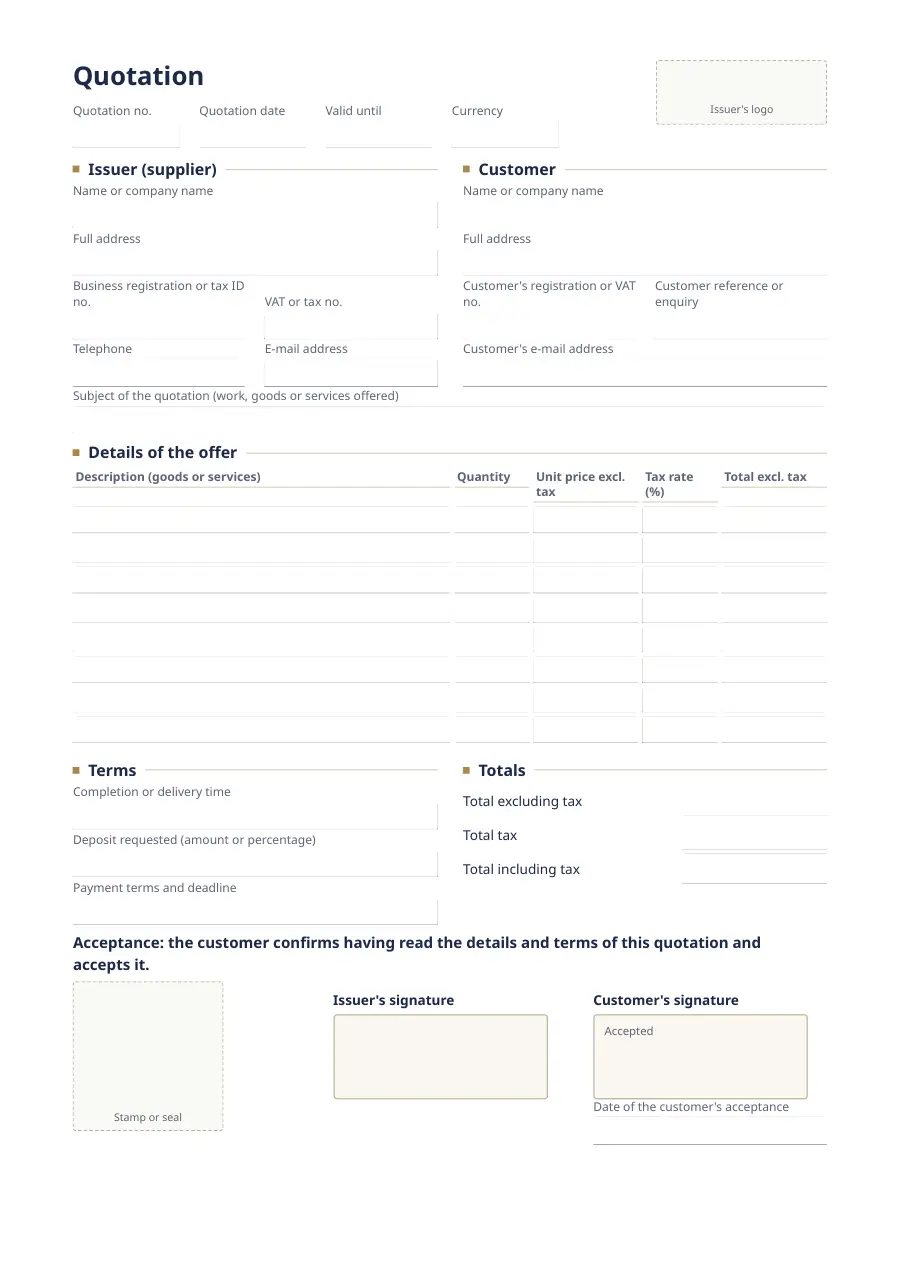
A professional quotation: logo, issuer and customer, subject, eight lines, totals, lead time, deposit, validity period, stamp and double signature for acceptance.
How to use it
- Fill in the issuer, the customer, the subject and the date until which the quotation is valid.
- Detail each line with quantity, unit price and tax rate; type the totals yourself.
- State the completion time, any deposit and the payment terms.
- Have the customer date and sign under “Accepted”; add your logo and stamp (PDF: “image or stamp”; Word: “Change Picture”).
Download
- Fillable PDF · A4 · 156 kB
- Fillable PDF · US Letter · 155 kB
- Word (.docx) · A4 · 9 kB
- Word (.docx) · US Letter · 9 kB
Fill in online · A4 · Fill in online · US Letter
Open the template in the MaxyForms editor. On a phone, a guided form walks you through the sections; on a computer you work directly on the page. Everything happens in your browser: nothing is sent to a server.
A4 (210 × 297 mm) is used in most countries; US Letter (8.5 × 11 in) in the United States, Canada and a few others. The content is the same, only the page size changes. Check the layout in your word processor before printing a Word file.
Image areas
These templates reserve labelled frames for images. The frames are placeholders, not crops: you place the image yourself, in the PDF with the editor's “image or stamp” tool, in Word by right-clicking the frame and choosing “Change Picture”.
- Logo: frame of 40 × 15 mm, for your company or organisation logo.
- Stamp: frame of 35 × 35 mm, for a company stamp or seal if you use one.
- Signature: 2 frame(s) of 50 × 20 mm. Sign by hand after printing, or add your signature with the editor's signature tool.
Other templates
- Absence explanation letter
- Acknowledgement of resignation
- Statement on oath of honour
- Employment verification letter
- Salary increase request
- Parental authorisation (travel or occasional care)
- Babysitting agreement
- Residential rental agreement
- Purchase order
- Work placement logbook
- Certificate of employment
- General terms of sale
- Change of address letter
- Cohabitation agreement
- Letter of condolence
- Leave request
- Notice of an association meeting
- Curriculum vitae
- Moving checklist
- Resignation letter
- Request for exam arrangements
- Acknowledgement of debt
- Request for a copy of my medical records
- Image release authorisation
- Withdrawal letter for a distance purchase
- Request for a duplicate document
- Request to erase personal data
- Inspection report (move-in / move-out)
- Letter of apology
- Invoice
- Timesheet
- Request to apply the legal guarantee
- Accommodation certificate
- Invitation letter for a visit visa
- Complaint about a parcel not delivered, late or damaged
- Formal demand for unpaid rent
- Formal notice (letter before action)
- Cover letter
- Non-disclosure agreement
- Expense report
- Notice to leave a rented home
- Service agreement
- Loan agreement between private individuals
- Vehicle loan agreement between private individuals
- Letter of financial support
- Bank account authority (power of attorney)
- Authority for an administrative errand
- Simple power of attorney
- Minutes of a meeting
- Rent receipt
- Letter of complaint
- Complaint to a bank
- Complaint about a delay, cancellation or baggage
- Academic reference letter
- Payment receipt
- Letter of recommendation
- Overdue invoice reminder
- Refund request
- Repair request to the landlord
- Contract or subscription cancellation letter
- Security deposit refund request
- Request to return a product
- Request for access to my personal data
- Agreement to end an employment contract by mutual consent
- School trip permission form
- Sublease agreement
- Remote work request
- Request to transfer to another school
- Sales agreement between private individuals
- Used vehicle sale agreement
- Consent for a minor to travel abroad